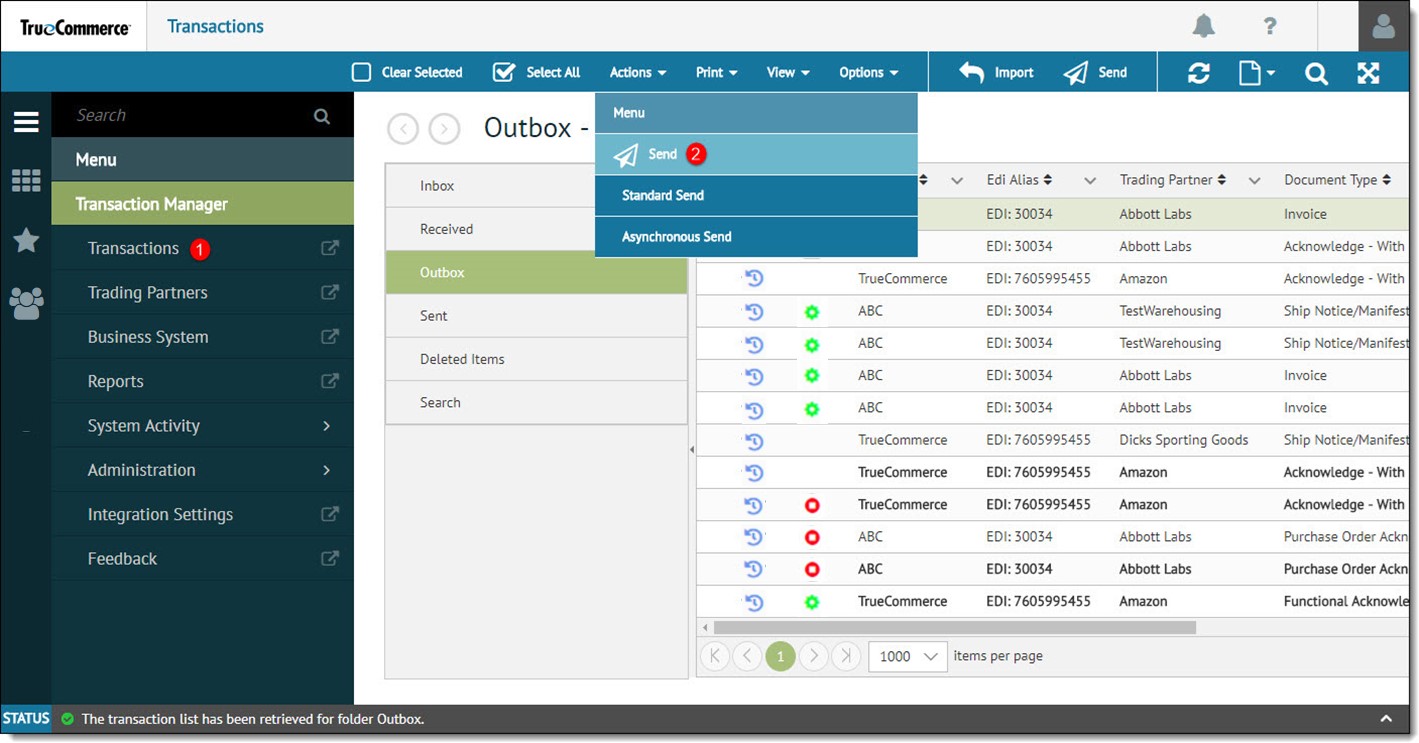
All transactions can be send from the Outbox folder by using the Send menu item or the Send toolbar button.
Note
Prior to sending a transaction, it is important to verify the information contained in the transaction is correct. There should be no status icons in the first column of the Outbox that prevent sending.
To send transactions:
In Transaction Manager, open the Transactions view from the navigation menu.
Select the transactions in the Outbox folder to be sent and select Actions | Send | Standard Send to send a single transaction or Asynchronous Send to send multiple transactions.
Note
To send multiple transactions in the Transaction Manager Outbox, if the transactions are adjacent to each other, press and hold the SHIFT key and select the last transaction to be sent. All transactions between the first and last are selected. If the transactions are not adjacent to each other, press and hold the CTRL key and select each transaction.
The Status pane at the bottom of the screen displays the transaction status and any error messages. Once the transactions are sent, Transaction Manager moves them to its Sent folder for storage.